Insta Pro Media Downloader: Download Photos, Videos & Reels Instantly
One of the biggest frustrations Instagram users face every day is the inability to save content directly from the app. You find a stunning travel photo, a helpful tutorial video, or a hilarious reel and there is no download button anywhere. Instagram deliberately removes this option to keep users dependent on the platform.
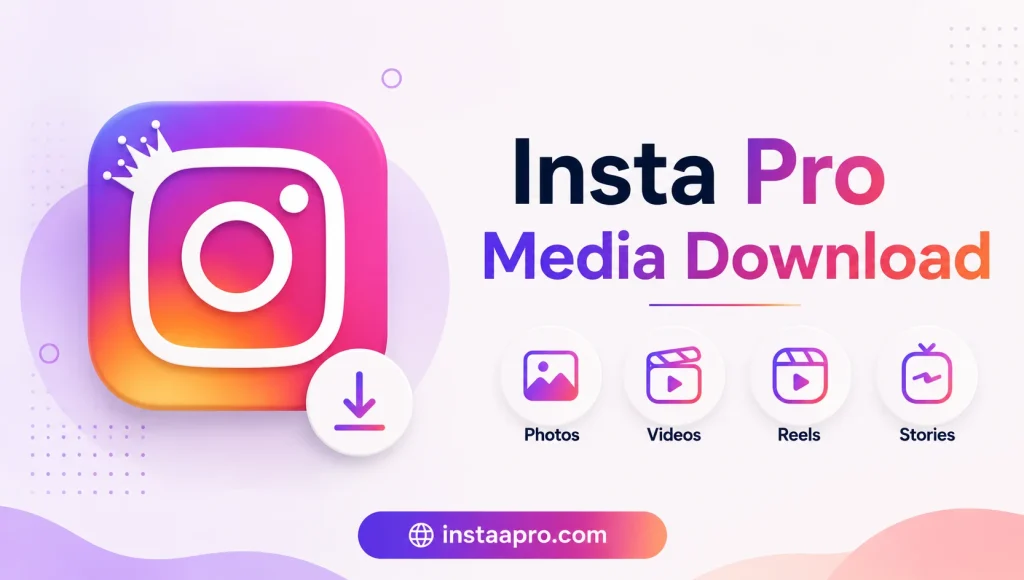
Insta Pro solves this completely. Its built-in media downloader is one of the most powerful and easy-to-use features in the entire mod, and it works across every type of Instagram content without requiring any third-party tools, websites, or workarounds.
This guide covers exactly how the Insta Pro media downloader works, what you can download, and how to get the most out of it. Download the latest version at instaapro.com.
What Can You Download With Insta Pro?
The Insta Pro media downloader is not limited to a single content type. It works across the full range of Instagram content formats:
| Content Type | Official Instagram | Insta Pro Downloader |
|---|---|---|
| Feed Photos | ❌ No Download | ✅ Full Resolution |
| Feed Videos | ❌ No Download | ✅ Original Quality |
| Reels | ❌ No Download | ✅ HD Download |
| Stories (Photos) | ❌ No Download | ✅ Silent Download |
| Stories (Videos) | ❌ No Download | ✅ Silent Download |
| Carousel Posts | ❌ No Download | ✅ All Slides at Once |
| IGTV Videos | ❌ No Download | ✅ Full Length |
| Profile Photos | ❌ No View/Download | ✅ HD Zoom + Download |
Every content format across Instagram is covered — from regular feed posts to story slideshows to long-form IGTV content.
How to Download Content Using Insta Pro
The download process is intentionally simple. There are no complicated menus or multi-step processes involved.
Downloading Feed Posts and Reels
- Open Insta Pro and browse your feed or the Explore page
- When you find a photo or video you want to save, tap the three-dot menu on the post
- A Download option will appear that does not exist in the official app
- Tap Download and the content saves directly to your device gallery
- For carousel posts, you can download all slides individually or as a batch
Downloading Stories
- Navigate to any account’s story you want to download
- A small download icon appears at the bottom of the story frame
- Tap it once and the story photo or video is saved instantly
- The account owner receives no notification of your download
- This works on both public accounts and accounts you follow
Downloading Profile Photos
- Open any Instagram profile
- Tap on the profile picture
- Instead of the blurred, zoom-disabled view from the official app, Insta Pro shows the full-resolution image
- A download button appears on the zoomed view — tap it to save the photo
Download Quality and Storage
Insta Pro downloads content at the highest available quality — the same resolution at which it was originally uploaded. Instagram compresses content when displaying it, but the downloader accesses the source file quality wherever possible.
Downloaded files are saved to a dedicated Insta Pro folder within your device’s internal storage or SD card. This keeps your downloaded Instagram content organized and separate from your regular photo gallery, making it easy to find and manage.
You can change the default save location within the app’s settings if you prefer a different folder structure.
Silent Story Downloads — What This Means
A key detail worth understanding is what “silent” means in the context of story downloads. On the official Instagram app, there is no download option at all — which means if you screenshot a story, Instagram notifies the creator on certain account types.
Insta Pro’s story downloader saves the full photo or video file without triggering any notification to the account owner. This is different from screenshotting, which can sometimes be detected. The download happens at the file level, not the screen level, making it completely undetectable.
Downloading Content From Public vs Private Accounts
The media downloader works on all public Instagram accounts with no restrictions. For private accounts, the downloader functions on any content that is already visible to you — meaning accounts you follow and have been approved by.
Insta Pro does not bypass Instagram’s privacy settings. If an account is private and has not approved your follow request, their content remains inaccessible, as it should be.
Tips for Getting the Most From the Media Downloader
- Use the batch download feature on carousel posts to save all images in one tap instead of downloading each slide individually
- Organize your downloaded content using the built-in folder manager in Insta Pro settings
- For large video files, connect to WiFi before downloading to avoid using mobile data
- The downloader works in the background — you can continue browsing while a download completes
- Always download the latest version from instaapro.com to ensure the downloader is compatible with Instagram’s current content delivery format
Frequently Asked Questions About Insta Pro Media Downloader
Q1: Does the media downloader work on Reels from accounts I do not follow?
Yes. The Insta Pro media downloader works on all publicly visible Reels, regardless of whether you follow the account. As long as the content appears in your feed, explore page, or a public profile, it can be downloaded.
Q2: Are downloaded videos saved in their original quality?
Insta Pro downloads content at the highest quality available through Instagram’s content delivery. In most cases this matches the original upload quality, though Instagram’s own compression during upload affects the final file quality before it reaches the downloader.
Q3: Does downloading a story notify the account owner?
No. Insta Pro’s story downloader is silent and does not send any notification to the account owner. This is one of the key advantages over screenshotting, which may trigger alerts on some account types.
Q4: Where are my downloaded files saved on my device?
By default, downloads are saved to a dedicated InstaP ro folder in your device’s internal storage. You can change this location in the app’s settings to any folder on your device or SD card.
Q5: Can I download content from private accounts?
You can download content from private accounts that you already follow and have been approved by. Insta Pro does not bypass Instagram’s privacy settings — it only downloads content that is already visible to your account.